Shopify is one of the most popular online selling platforms for entrepreneurs and small business owners. But as your business grows or changes, there might come a time when you need to learn how to cancel Shopify subscriptions.
Knowing this process is key, whether you’re pausing to regroup, switching platforms, or closing your store for good.
Understanding how to cancel a Shopify subscription protects you from unexpected charges and helps you keep control over your store’s data and billing.
Many business owners cancel for reasons like shifting strategies, reducing costs, or testing new e-commerce tools. Whatever your reason, making the right moves preserves your information and prevents headaches down the road.
If you’re interested in new opportunities after closing your Shopify store, you might want to explore top AI business ideas that are gaining traction among entrepreneurs.
Let’s get into what you need to know before you say goodbye to your Shopify subscription so you can make the transition as smooth as possible.
Understanding Shopify Subscription Plans
Before you pull the plug on your Shopify account, it helps to know the details behind your current plan and what cancellation really means for your store.
Shopify’s flexible plans are built to suit new startups, growing businesses, and high-volume retailers alike. However, every subscription comes with certain financial and operational commitments that can impact your next steps.
Overview of Shopify Pricing and Contracts
Shopify offers several subscription options, ranging from affordable entry-level plans to robust platforms for established brands. Here’s a quick summary of what you can expect:
• Starter and Basic Plans: Designed for new sellers or smaller shops, these plans keep costs low but provide all the must-haves, including a website, product listings, and basic support.
• Shopify and Advanced Plans: Tailored for growing or established businesses, these add extra features like professional reports, lower credit card rates, and higher staff accounts.
• Shopify Plus: For large enterprises, this plan offers custom solutions, API integrations, and hands-on account management.
You can choose to pay monthly or annually. Monthly plans give you flexibility, while annual payments sometimes offer a discount if you commit for the year.
Shopify pricing details change, so always double-check the latest fees and features directly on the Shopify pricing page.
Beyond the subscription itself, Shopify integrates easily with top payment gateways and merchant accounts. This makes it a top choice for anyone seeking easy, reliable payments.
For comparison of payment options or to find platforms compatible with Shopify, check out a review of Top eCommerce Merchant Accounts.
For the nitty-gritty on plan choices, you can also read about Shopify’s options at Shopify’s official plan comparison page.
What Happens When You Cancel Your Shopify Plan?
Canceling your Shopify subscription means more than just stopping future payments. Here’s what actually happens:
• Your store goes offline: Customers can no longer view your website or shop for products.
• Data retention window: Shopify holds your store data, like customer details, order history, and product info, for a limited time after cancellation.
This gives you some breathing room if you change your mind, but it’s wise to back up the data you want to keep.
• Access to third-party apps: Many apps and integrations you use in your store will also stop working, including payment and shipping tools.
• Pending charges: Shopify may charge you for any outstanding fees or unpaid invoices as you leave.
For a detailed breakdown of cancellation rules and refunds, it helps to review the Shopify help guide.
Key Factors to Consider Before Cancelling
Switching off your Shopify subscription can seem simple, but you should weigh these points first:
• Active Subscriptions or Prepaid Fees: If you paid annually or have active subscriptions, check for early termination fees or policies that affect refunds.
• Ongoing Orders and Shipments: Ensure all outstanding orders are handled and customers are updated before your store goes dark.
• Back Up Your Information: Protect your business by downloading your product, customer, and order data.
• Connected Platforms and Integrations: If you rely on third-party services (like email marketing, payment processors, or shipping plugins), assess how cancellation affects them.
For those thinking about switching, Shopify supports integrations with the best platforms. You can see how Shopify compares across merchant accounts in this overview of leading payment solutions.
• Financial Recovery and Tax Records: Download financial reports and tax documents you might need later.
Decision time? Make sure you’re not leaving money or important data on the table.
If you’re looking for alternatives, explore solutions that let you accept payments online without a merchant account, or compare Shopify to other platforms by reviewing complete pricing guides.
Taking these steps will make the process of how to cancel Shopify subscription far less stressful and more predictable.
Step-by-Step Guide to Cancel a Shopify Subscription
Canceling your Shopify subscription can feel like a big decision, but with the right steps, the process is straightforward.
If you’re ready to close your store or take a break from e-commerce, knowing exactly what to do saves you stress and may help you avoid unexpected charges.
Follow this guide to make sure your store data, billing, and account remain under your control.
Preparing Your Store for Cancellation
Before you actually cancel your Shopify subscription, there’s a bit of housekeeping that can save future headaches. Taking a few moments to confirm these details will set you up for a cleaner exit.
• Back Up Your Data: Start by exporting your important information. Download product details, customer lists, and recent order history.
Shopify keeps your data for a while, but it’s safer to store copies yourself, especially if you’ll use this info for taxes, future relaunches, or moving to a different platform.
• Check Your Integrations: Apps and third-party add-ons often store their own bits of data. Review what you might lose access to (like email lists, custom reports, or forms) and export anything you can from those tools as well.
• Complete Outstanding Orders: Make sure all products have shipped and any refunds are processed. Canceling your subscription pauses access to Shopify’s admin dashboard, which can make customer support tricky if you miss this step.
• Notify Customers: If your store is closing or pausing, consider sending a quick note out to customers so no one gets left wondering about their purchases.
• Review Your Billing Cycle: If your renewal is coming up, timing your cancellation right before the next billing period can save cash.
Taking these steps now helps you avoid regrets later. If you’re curious about what happens to your data and custom plugins after you cancel, Shopify’s community forum discusses this in detail in their subscription cancellation discussion.
How to Cancel Shopify Subscription via Dashboard
You’re ready to make it official? Cancel your Shopify subscription directly from the admin dashboard with these steps:
• Sign In to Shopify: Use your store owner account, staff accounts won’t have the correct permissions.
• Go to Settings: Look for ‘Settings’ (on the left sidebar at the bottom).
• Select Plan: Under Settings, click ‘Plan’ to view your plan details and billing frequency.
• Click ‘Deactivate Store’: At the bottom, find the option to ‘Deactivate Store.’ Shopify might ask why you’re leaving, choose your reason or skip if you’re in a hurry.
• Confirm Cancellation: Shopify will show a few warnings about losing access. Review the notes about billing and data. If you’re sure, proceed and confirm.
Before you finish, double-check the following:
• Remove any apps you pay for outside of Shopify to avoid additional charges.
• Save your deactivation confirmation email for your records.
If you want detailed visuals or screen-by-screen guidance, you’ll find a useful resource with screenshots in this detailed Shopify cancellation tutorial.
For those thinking about leaving Shopify for another platform or solution, consider comparing your options.
Tools exist that let you sell products with a merchant account or even accept payments online without a dedicated provider.
Managing Billing Issues and Final Charges
Canceling your Shopify subscription doesn’t always mean your financial ties end immediately. Keep a sharp eye on billing and final charges to stay in control.
• Outstanding Invoices: Shopify may charge your payment method for any unpaid fees on the account right after deactivation.
• Check for App Fees: Some third-party apps bill separately. Log into those accounts and ensure you’ve canceled any extra subscriptions.
• No Prorated Refunds: Most Shopify plans do not issue refunds for unused time after cancellation, your store will close right away, and your last payment covers access until that date.
• Download Receipts: Save billing statements and invoices for accounting and tax purposes.
If you have trouble with extra charges or need clarification, Shopify’s own help guide for managing subscriptions shares more. You can also dive into topics like payment disputes and refunds in their forums.
Mistakes can happen during cancellation, especially if other team members or third-party apps are involved. To avoid headaches, always double-check your export files and your app subscriptions before hitting that final confirmation.
If you’re interested in making smarter decisions about your business finances, explore more about managing your business accounting and payments to make any future transitions easier.
Alternatives to Cancelling Your Shopify Subscription
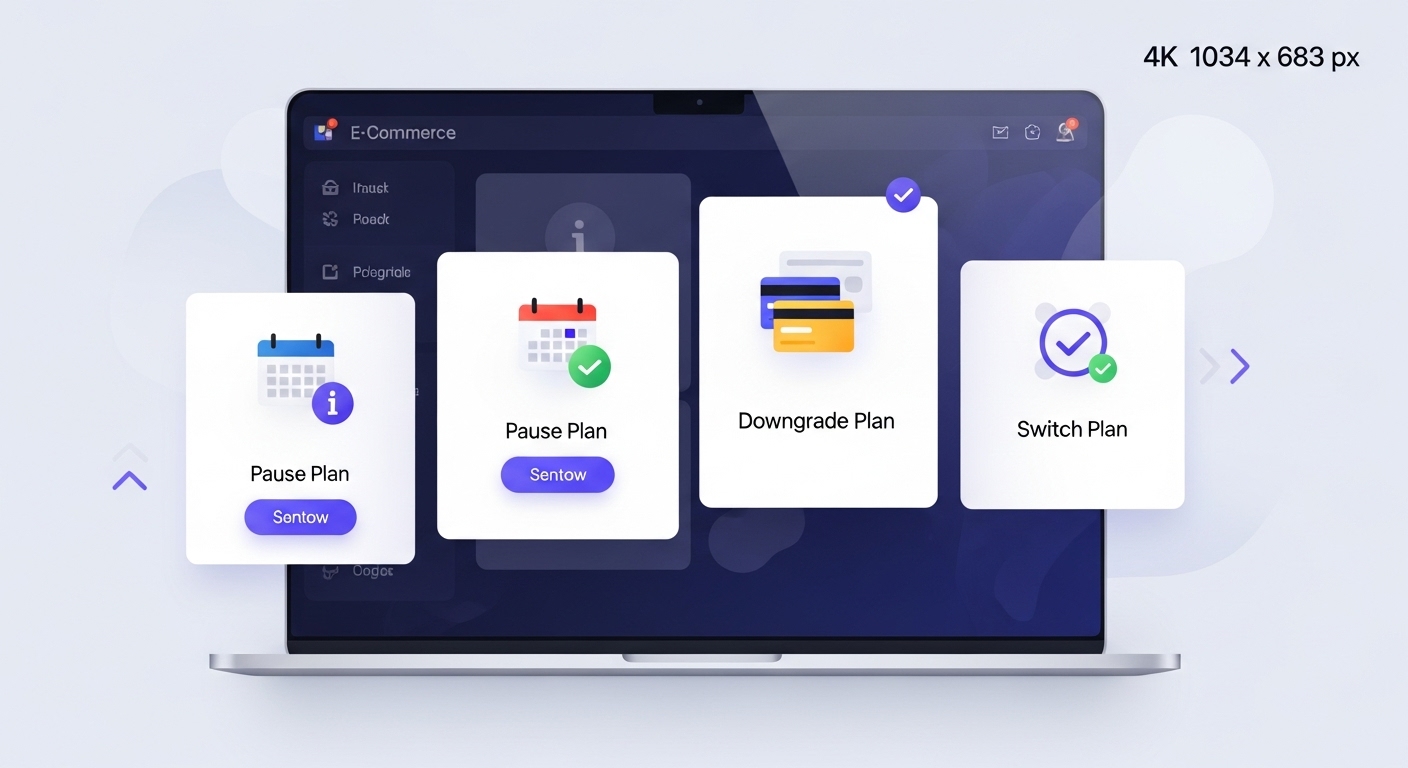
If you’re on the fence about saying goodbye to Shopify, it’s good to know you have more than one option. Many store owners find that pausing, downgrading, or fixing simple subscription problems works better than canceling outright.
Each alternative offers flexibility, can save you money, and keeps your store’s momentum going just in case your business is ready for a comeback or quick pivot toward something innovative.
Pausing Your Shopify Store
Sometimes, a full cancellation isn’t the right call. If you’re hitting a seasonal slump, reworking your product line, or need time to rethink your business, Shopify’s “Pause and Build” plan is a lifesaver.
This feature lets you keep your store online (with limited checkout and functionality) and dramatically reduces your monthly fees.
• Why pause instead of cancel?
o You keep your website, product catalog, and customer data safe.
o Your SEO rankings and site links stay intact, avoiding a costly rebuild when you return.
o You can relaunch anytime without starting from scratch.
To pause your store, simply log in to your admin dashboard, go to Settings > Plan, and choose the “Pause and Build” option.
Shopify will prompt you with the new, lower fee structure and explain what features will be available.
Remember, your customers won’t be able to make new purchases during this pause, but you can keep working on the site in the background.
If you’re evaluating future business ideas while your store is on pause, consider reading about Innovative AI Business Ideas for fresh inspiration.
Downgrading or Switching Your Plan
Another strategic step when costs feel too high or needs change is to move to a cheaper Shopify plan instead of canceling.
Shopify lets store owners switch plans at any time, making it easy to downgrade to the Basic plan or adjust features as budget or business scale fluctuates.
The benefits of switching plans include:
• Cost savings: Move to a lower plan and keep your store running while slashing monthly expenses.
• Retain store access: You’ll hang onto your product listings, order history, and customer data.
• Test new features: Trying out different plan levels might open up features or reports you hadn’t considered.
You can change plans by logging into Shopify, navigating to Settings, then Plan, and choosing “Change plan.” Shopify pro-rates your charges, so you won’t pay the full next-billing cycle if you switch partway through the month.
Mobile management is another smart move for budget-conscious owners. Explore Top Mobile Apps for E-commerce Entrepreneurs to manage your store efficiently, whatever plan you use.
Resolving Common Subscription Challenges
Before you hit cancel, it’s smart to check if subscription headaches are just common issues that can be fixed quickly. Some problems store owners experience:
• Unexpected fees or billing confusion: Double-check your bill in the Shopify dashboard and review app charges. Disputes or errors are often resolved with Shopify support in a single call.
• Limited features or growing pains: Sometimes, switching add-ons or using more effective e-commerce apps can solve your headaches faster than canceling your main plan.
• Technical glitches or slowness: Most slowdowns trace back to heavy themes or buggy third-party apps. These issues are often fixed without closing your entire store.
Shopify’s customer support is known for helping solve nagging subscription problems, so reaching out can save you time and stress. Troubleshooting now might help you avoid the extra work and added risk of a full cancellation.
Even if your needs are changing, remember that smart business owners pivot instead of quitting.
For those rethinking their online business, keeping your Shopify store open a little longer could make adapting to new tech trends or exploring AI-powered innovations much easier.
When considering how to cancel Shopify subscription, exploring these alternatives first helps you maintain control and flexibility while you plan your best next move.
Conclusion
Successfully canceling your Shopify subscription is all about preparation and informed action. When you back up your data, review your billing, and close out orders in advance, the process stays smooth and predictable.
Give yourself time to weigh alternatives like pausing or downgrading before finalizing your decision, especially if your business could rebound or pivot in a new direction.
Consider exploring future-focused opportunities, such as AI-powered tools and smarter eCommerce strategies, to help keep your business moving forward.

I am Adeyemi Adetilewa, a content marketing strategist helping B2B SaaS brands grow their organic traffic, improve search visibility, and attract qualified leads through data-driven, search-optimized content. My work is trusted by the Huffington Post, The Good Men Project, Addicted2Success, Hackernoon, and other publications.